Collecting Guide
How to Import Your Dreamborn Collection Into an iPhone App
Been tracking your Lorcana collection on dreamborn.ink? You don't have to start over to get scanning, live prices, and a native iPhone experience. Export once, import in seconds — here's exactly how.
Why add an app alongside Dreamborn?
Dreamborn is a solid web tracker and deck-list hub, but it can't scan cards, doesn't show market prices for your collection, and lives in a browser. A native app like Ink Well Keeper picks up where it stops: camera scanning for new pulls, live collection value, offline access at the card shop — and it reads Dreamborn's own CSV export, so migrating takes about a minute.
Step 1: Export your collection from dreamborn.ink
- Sign in at dreamborn.ink and open your Collection.
- Find the Export option and choose CSV.
- Save the file where your iPhone can reach it — iCloud Drive, the Files app, or email it to yourself.
Step 2: Import into Ink Well Keeper
- Open Ink Well Keeper and go to Bulk Import.
- Choose Dreamborn CSV and select your exported file.
- Watch the live progress as your cards match — quantities, sets, and variants included.
- Review the matched cards and confirm to add them to your collection.
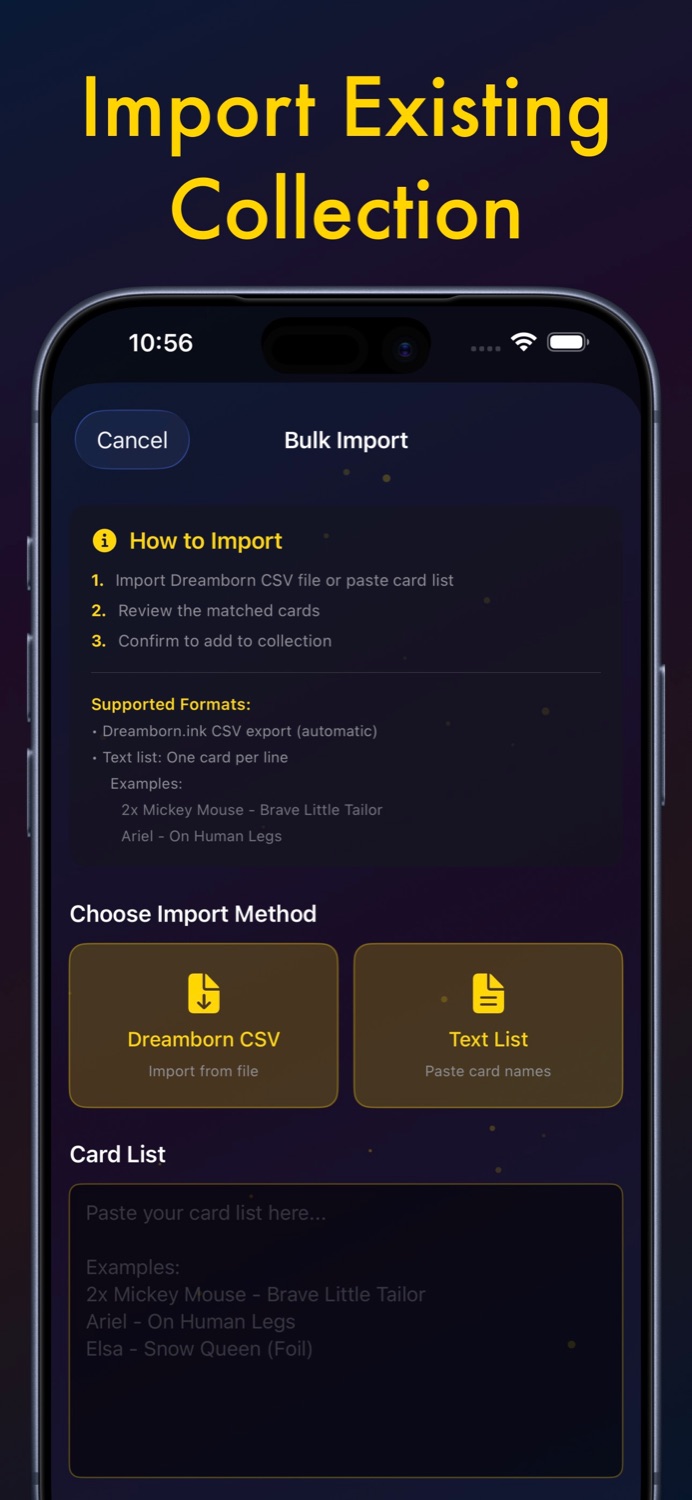
No CSV? Paste a text list instead
If your collection lives in a spreadsheet, a notes file, or a deck list, use the Text List import: paste lines like 3x Mickey Mouse - Brave Little Tailor or 4x Elsa - Snow Queen (Foil) and the matching cards import just the same. Starter deck presets are also built in, so a brand-new player can log their first product in two taps.
After the import
Your set completion bars, collection value, and deck builder all light up immediately with your full collection. From then on, just scan new pulls as they arrive — no more manual entry anywhere.
Bring your collection with you
Dreamborn CSV and text list import are free and built in.
Download on the App StoreImport in under a minute · Data stays on your device